Get a VPS
In order to run your own SoftEther VPN server you will need to install it either on a VPS or on a computer at home. If you want to access your own nettwork from anywhere else, you should install it at home. However the purpose of this tutorial is to show you how you can surf anonymously online, so I will show you how to install and manage a VPN server on a VPS.
While searching the internet for a VPS provider, I found one where you can get a cheap VPS with very good specifications, which I want to share with you. In this tutorial I'll show you how you can deploy a VPS at alexhost.com and install SoftEther VPN server.
If you follow one of my affiliate links from this website and make a purchase, I will also get a commission.
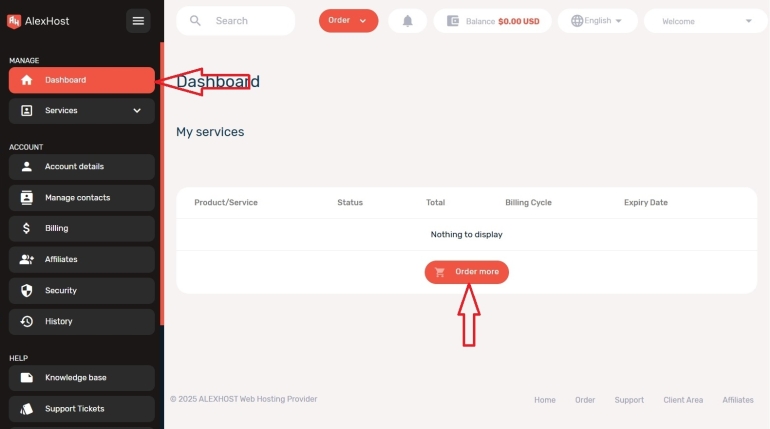
First create an account, then login and go to "Dashboard" and click on "Order more" button.
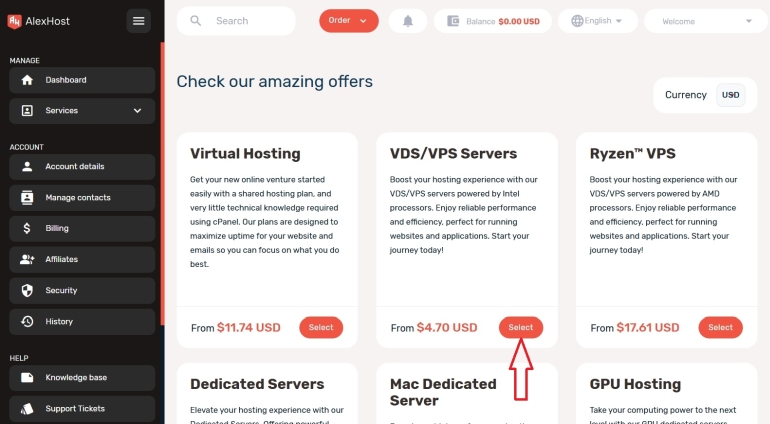
Then, choose "VDS/VPS servers". This was the cheapest at the time of writing. For the price of shared hosting, you get a pretty good VPS.
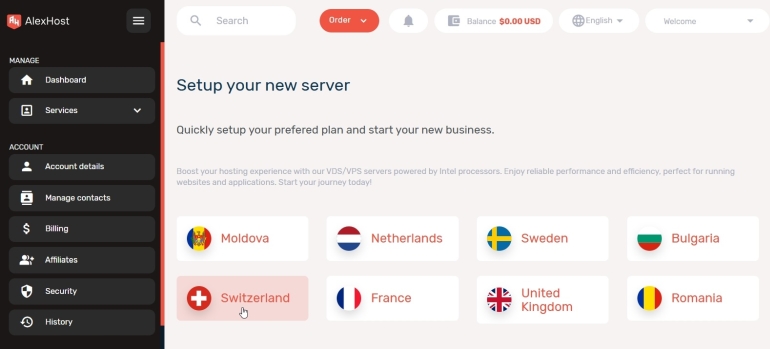
Then you have to choose which country you want your VPS in. This depends on your needs. I have chosen Switzerland, both because it is quite close to my location and strong privacy laws in Switzerland.
Next, choose a VPS plan that suits your needs. Please note that you will get the lowest monthly price if you choose annual payment. At the time of writing, there was a 50% discount for annual payment.
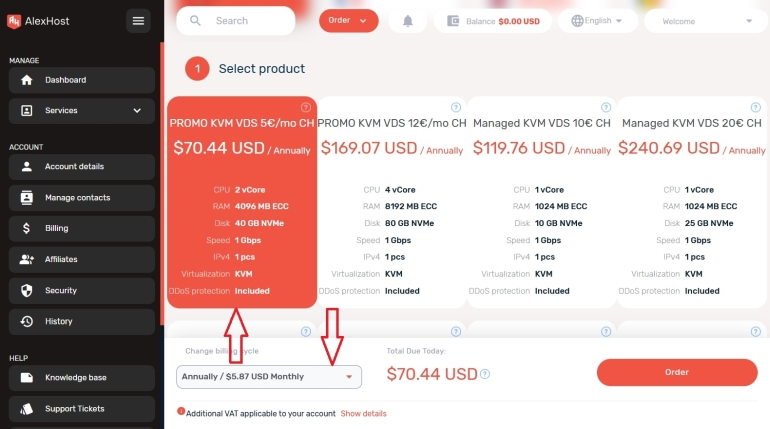
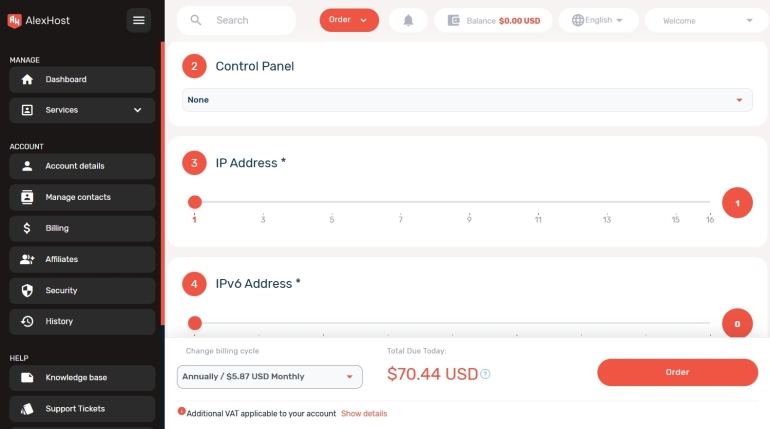
Then you can choose whether you want a control panel installed on your VPS. This is only relevant if you want to host websites, but for installing SoftEther VPN server it is not necessary. A control panel would also require some resources, so I didn't choose one.
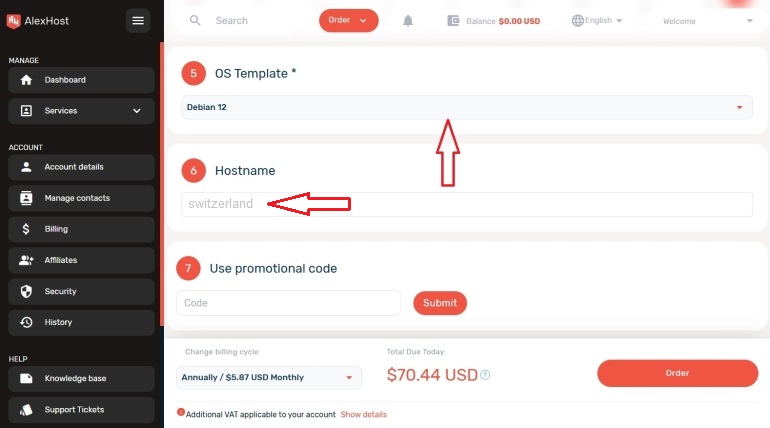
This tutorial is based on a VPS with Debian 12 or 13, so in the next step you can choose Debian 12 or 13. In "Hostname" field you can write for example "switzerland" if the VPS will be located in Switzerland. This will also affect how your SSH prompt will look like, for example vpnuser@switzerland.
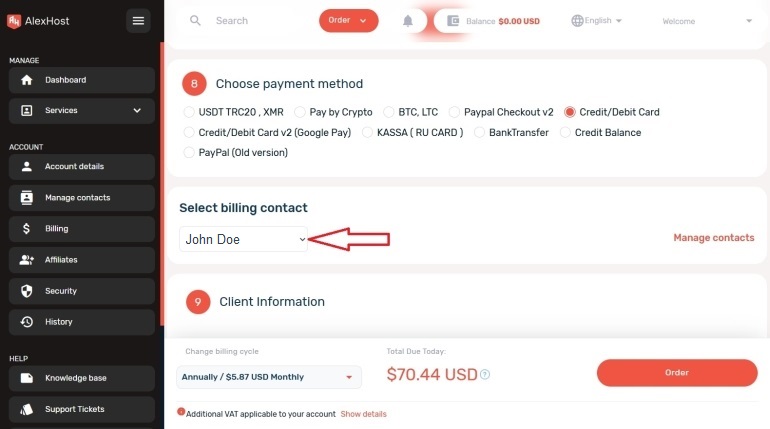
Next you have to choose a payment method and select a billing contact from the dropdown menu.
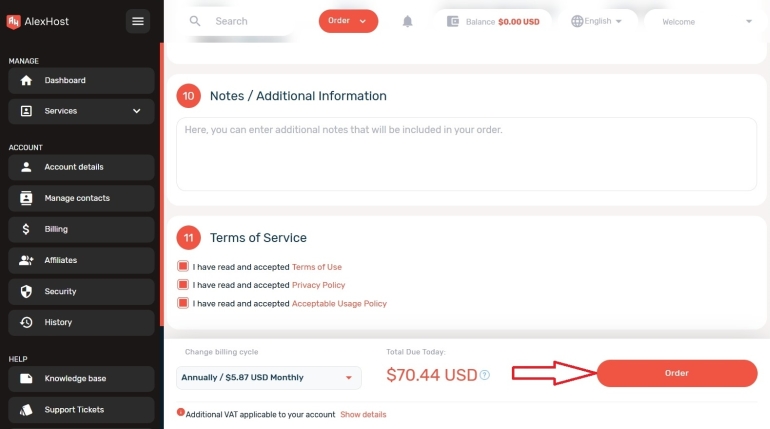
Finally, read the terms of use, privacy policy, acceptable use policy, and confirm that you have read and accept them, then click on "Order" button.