

SE VPN Windows client
The purpose of this tutorial is to show you how you can surf anonymously on internet. We have now reached the last part, namely the SoftEther VPN client. From the official site you can get SoftEther VPN client both for Windows, Linux and Mac OS X. In this article I will use SoftEther VPN client for Windows.
First download SoftEther VPN client. Select component, platform and CPU, and download the latest version. At the time of writing, the last version was 4.44-9807-rtm.
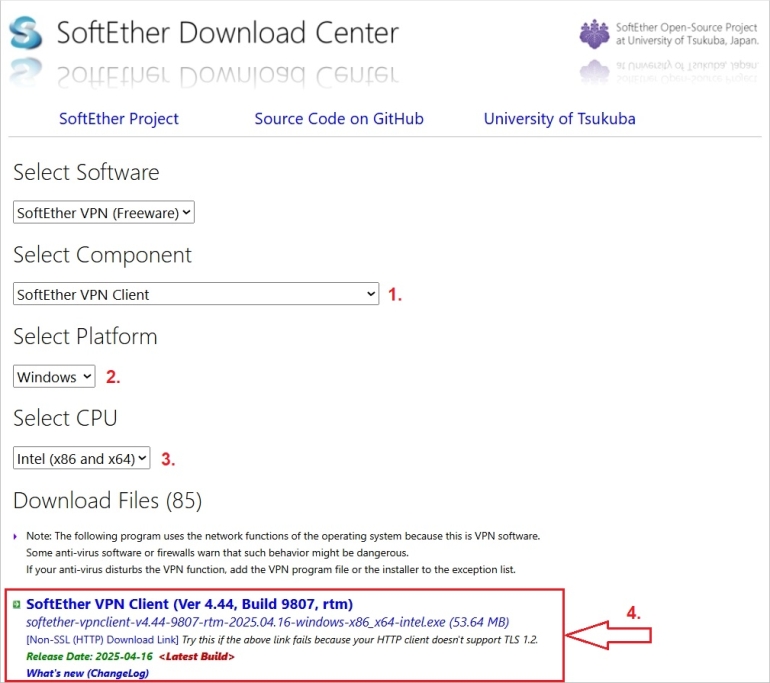
Then, install SoftEther VPN client and open SoftEther VPN client to configure it.
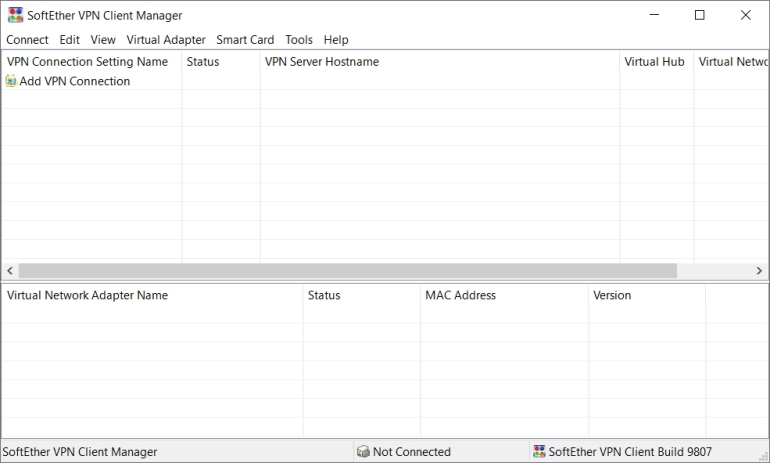
Next, you have to install a virtual network adapter.
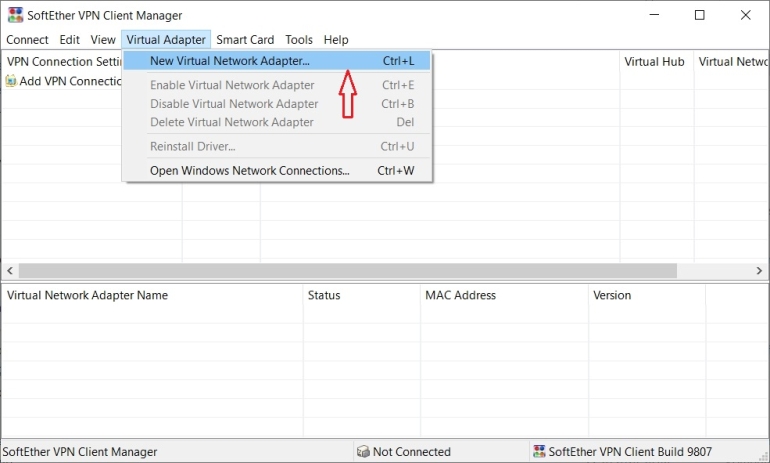
Click on "Virtual Adapter" and "New Virtual Network Adapter".
A pop-up window will open.
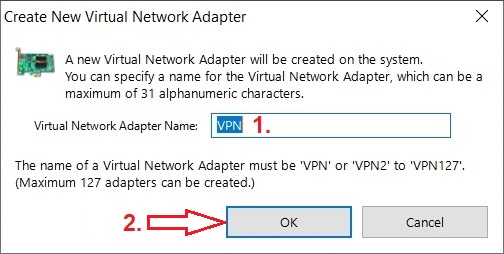
Leave the name of the network adapter as "VPN" and press the "OK" button.
The virtual network adapter should be created.
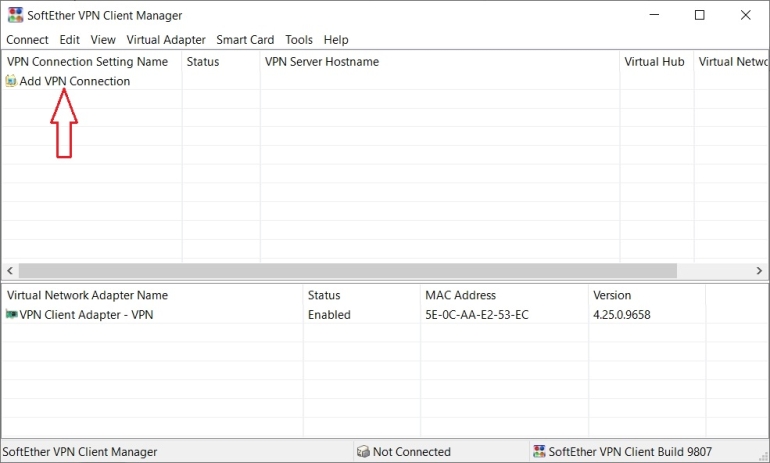
Double-click on "Add VPN Connection" button to create a new connection.
A pop-up window will open.
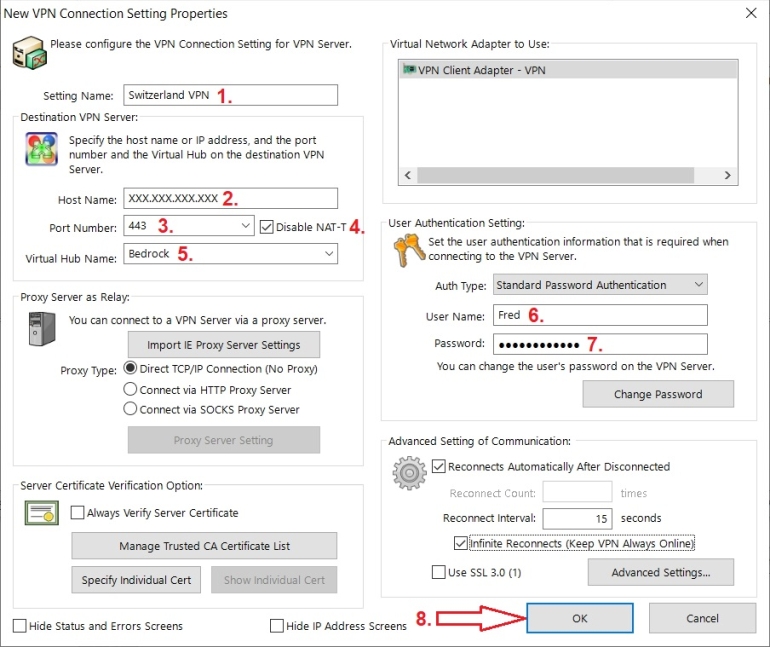
Give the new connection a name, enter the IP address of your VPS in "Host Name" field (replace XXX.XXX.XXX.XXX with the IP address of your VPS), choose a port to connect to, disable NAT-T, choose a virtual hub, enter the user name and the password, and press the "OK" button to create the new connection.
The new connection should be created.
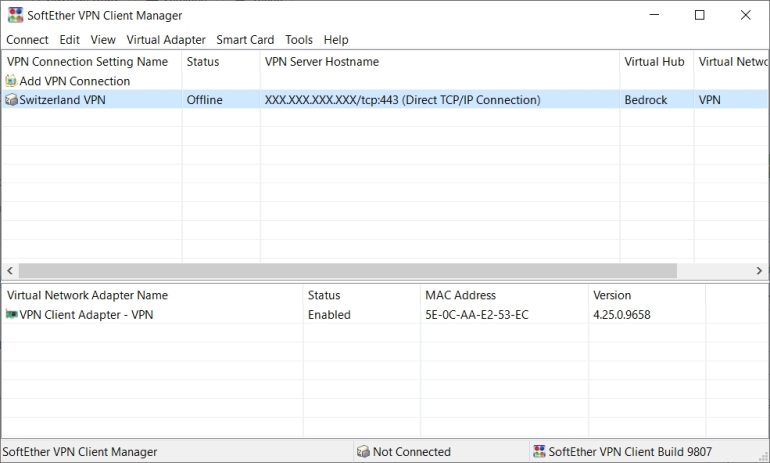
Double-click on the connection to connect to your SoftEther VPN server.
You can also configure the SoftEther VPN client to start this connection every time you turn on your computer.
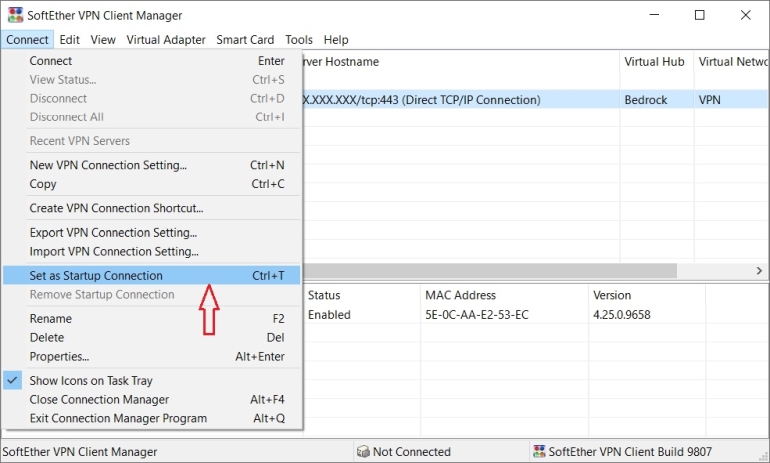
Click on "Connect" and "Set as Startup Connection".