

SSH key authentication
To secure your SSH server even better, you can implement SSH key authentication instead of password-based authentication. Since I am already using PuTTY in this tutorial, I am going to show you how you can use PuTTY and PuTTYgen to set up SSH key authentication.
Before you download PuTTY, make sure it is legal in your country. In some countries it's illegal to use cryptographic software. If in doubt seek legal advice.
You can get PuTTY both for Windows and Unix. I use the Windows version in this tutorial. Download and install PuTTY from the official website and start PuTTY to configure it.
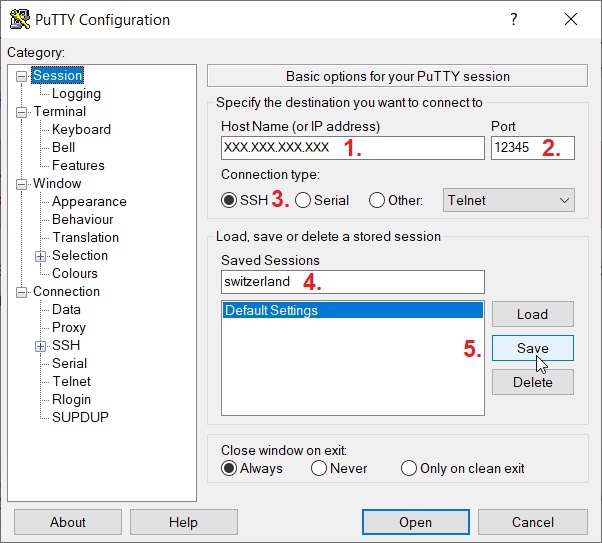
First enter your server's IP address in "Host Name (or IP address)" field. Then enter the port for your SSH server, "22" if you didn't change the SSH port in Secure your VPS, or the new port if you changed it. Make sure the "SSH" radio button is chosen, then give your connection a name. I usually use my hostname (in this case "switzerland"). Then click on "Save" button, to save the settings. This will make it easier for you to open this connection when you will connect to your server later.
You can now connect to your server.
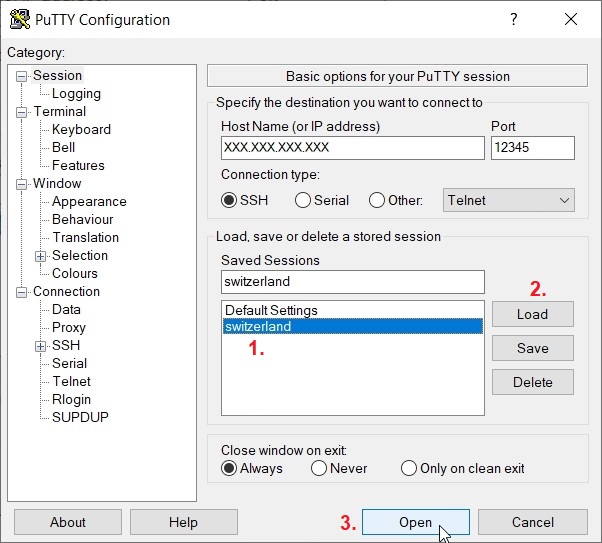
Choose "switzerland" in "Saved Sessions" section, click on "Load" button, then on "Open" button.
First time you log in to your VPS with PuTTY, you will get a warning that "The host key does not match the one PuTTY has catched for this server". This is normal. Click on "Accept" button and a terminal will open.
Log in to your VPS and create a new folder /home/vpnuser/.ssh, change permissions for /home/vpnuser/.ssh folder and create a new file inside it /home/vpnuser/.ssh/authorized_keys. Since you are making changes in your own /home/vpnuser/ folder you don't have to use sudo. Moreover, without sudo, the folder /home/vpnuser/.ssh and the file /home/vpnuser/.ssh/authorized_keys will be created with "vpnuser" rights which is what you want.
mkdir /home/vpnuser/.ssh
chmod 700 /home/vpnuser/.ssh
touch /home/vpnuser/.ssh/authorized_keys
Replace "vpnuser" with your username.
You can now generate a public/private key pair. Go to the folder where you installed PuTTY and find puttygen.exe.
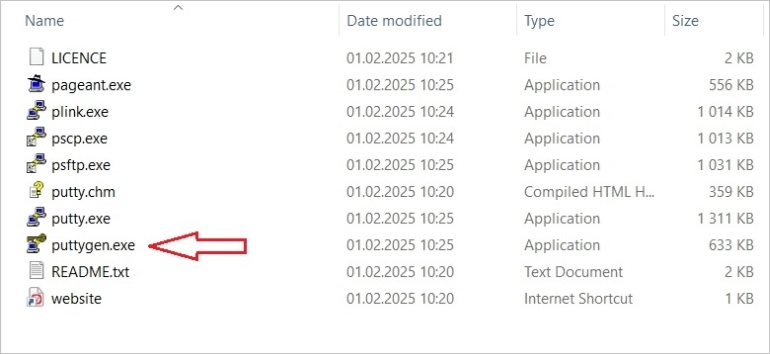
Double-click on puttygen.exe to open it.
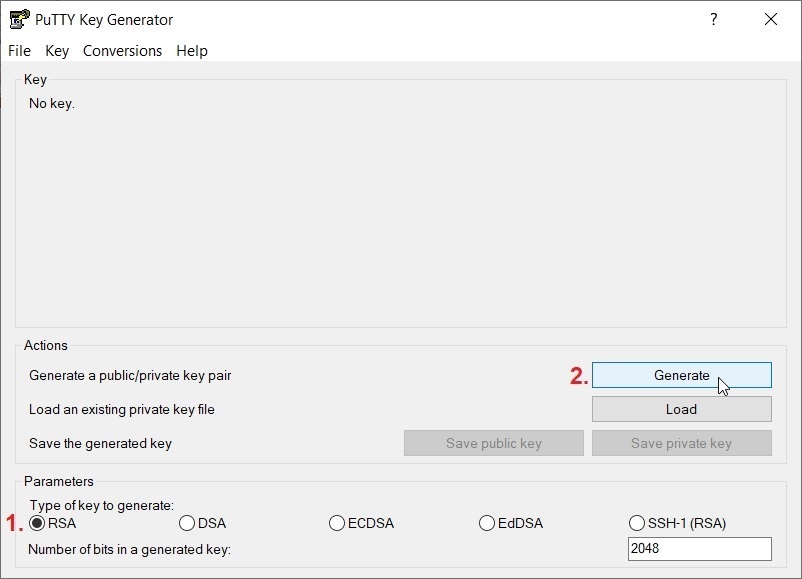
Choose a cryptographic algorithm and click on "Generate". I have chosen "RSA", for this example, but there are several cryptographic algorithms to choose from (RSA, DSA, ECDSA, EdDSA and SSH-1).
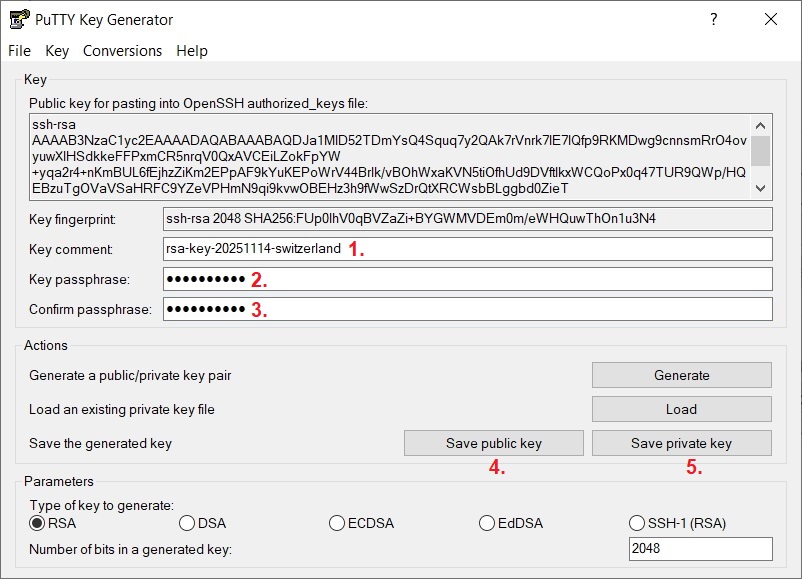
Customize the key comment, then you can add a key password, and save the keys in a folder on your harddisk. You can save them as, for example, rsa-key-20251114-switzerland.pub (the public key) and rsa-key-20251114-switzerland.ppk (the private key).
Now you can copy the public key to your server.
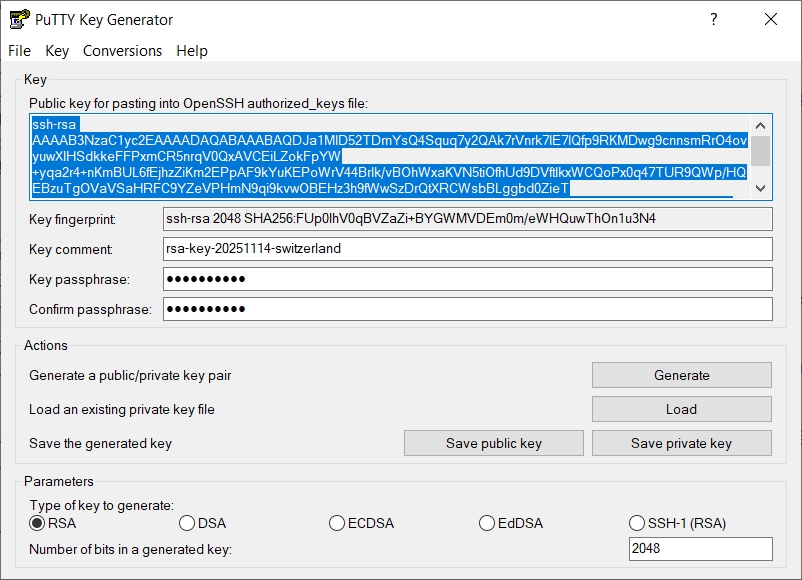
Copy the data inside the public key section in PuTTYgen.
On your server open the file /home/vpnuser/.ssh/authorized_keys.
nano /home/vpnuser/.ssh/authorized_keys
Replace "vpnuser" with your username.
Paste the public key text into the /home/vpnuser/.ssh/authorized_keys file (right click with your mouse somewhere in the SSH terminal).
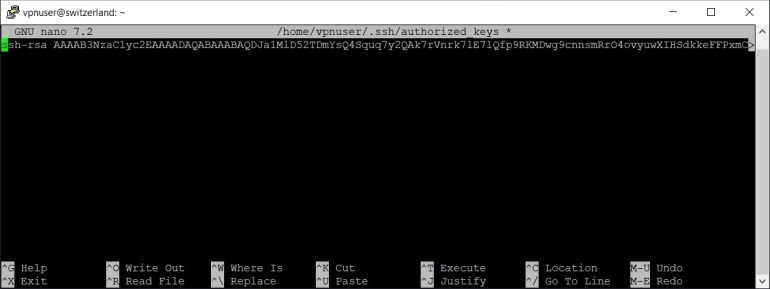
Make sure the text is on a single line.
Press Ctrl x, then y and Enter to save the file.
Change permissions for /home/vpnuser/.ssh/authorized_keys file.
chmod 600 /home/vpnuser/.ssh/authorized_keys
Now you can configure PuTTY to use SSH key authentication. Exit the SSH terminal and restart PuTTY.
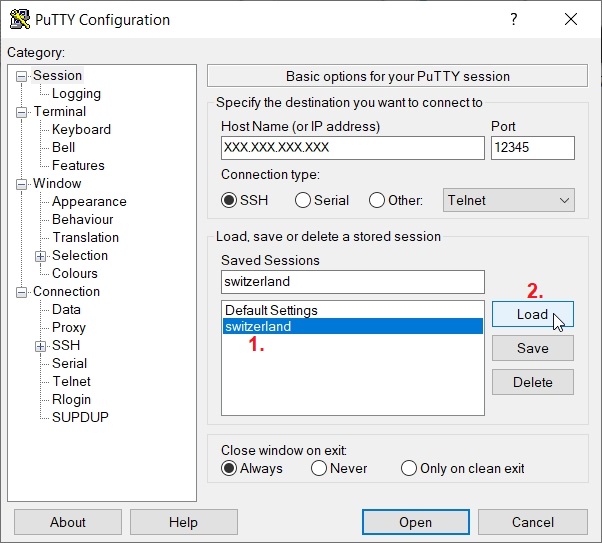
Choose the saved "switzerland" connection and click on "Load" button.
Go to Connection > Data.
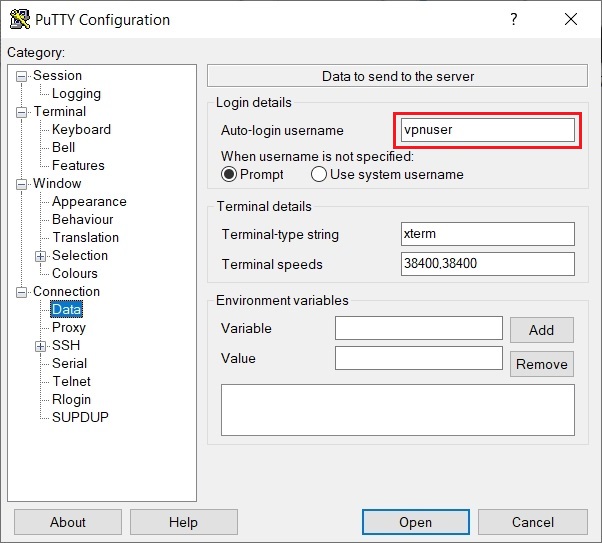
Enter your sudo username in the "Auto-login username" field.
Go to Connection > SSH > Auth > Credentials.
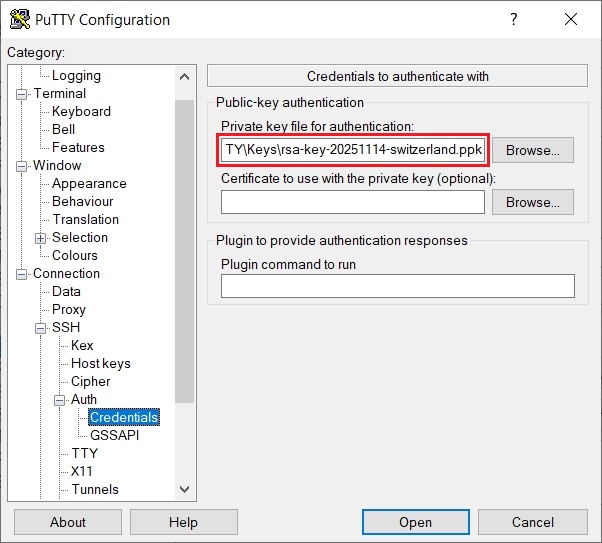
Enter the path to your private key you saved earlier (or browse to find it), in the "Private key file for authentication:" field.
Go back to Session again.
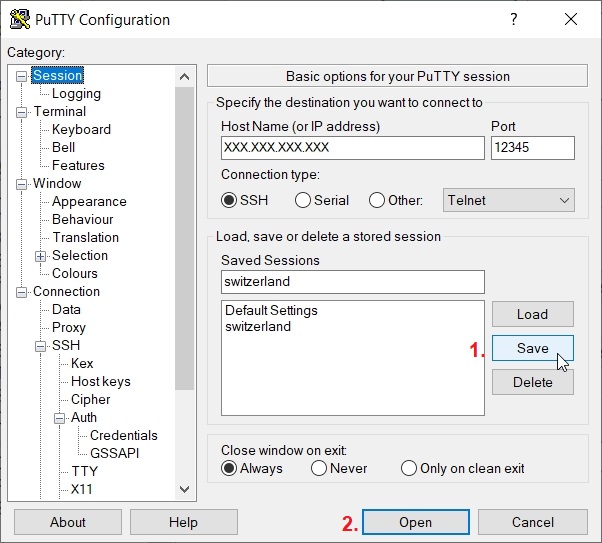
Click on "Save" button again and on "Open" button to open the connection.
An SSH terminal will open for user "vpnuser" authenticating with public key "rsa-key-20251114-switzerland".
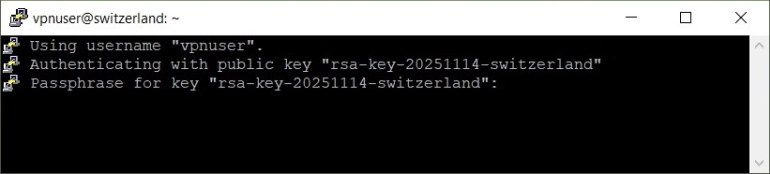
If you provided a password for your private key earlier, you will have to enter that password here in order to log in to your VPS.
If everything works as expected and you can log in with SSH key, you can disable password-based authentication. Open /etc/ssh/sshd_config.
sudo nano /etc/ssh/sshd_config
Find the line PasswordAuthentication yes and change it to PasswordAuthentication no.
PasswordAuthentication no
Restart the SSH server to apply the changes.
sudo systemctl restart sshd